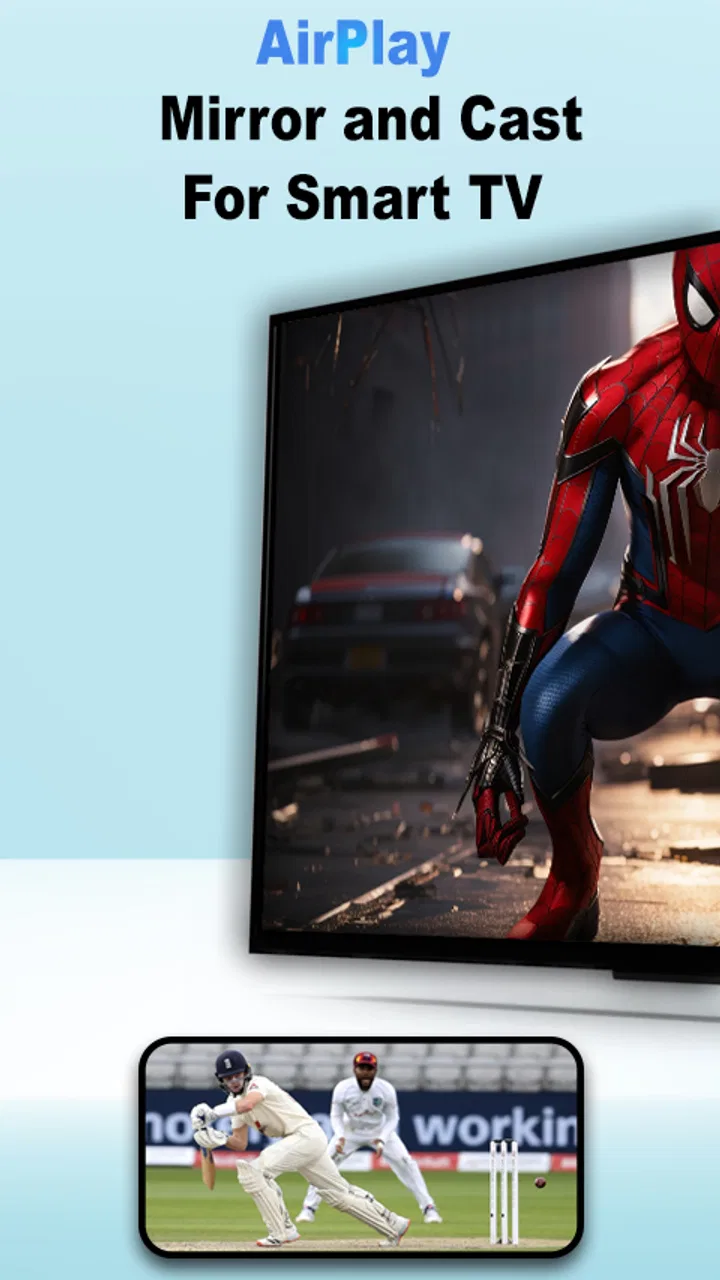
Air Play: Cast to TV
- 2.7
- Rating
- 100.00K
- Installs
- Free
- Price

 Analysis by App-foxy
I approached Air Play: Cast to TV as a simple screen-sharing tool rather than a complete home-entertainment system. Its central promise is straightforward: move what is on a phone onto a television with as little effort as possible. That single capability can be genuinely useful, especially when a small phone screen gets in the way of showing photos, videos, or a presentation to other people. At the same time, casting is one of those tasks where the quality of the experience depends heavily on the television, network, and phone involved.
This free app from Shadow soft belongs to the libraries and demonstration section, and it is available for everyone. It was released on June 19, 2024, and the current version is 34.0, with support beginning at Android 7.0. The basic appeal is easy to understand: instead of passing a phone around, I can try to put its content on a larger display. The important question is not whether that sounds convenient, but whether the connection remains practical once I leave the store page and use it in an ordinary room.
What the casting capability really changes
The biggest benefit is social. A phone is designed for one person, while a television is designed for a group. When I want to show holiday pictures, a short clip, a map, or something I have found online, mirroring can turn a private screen into a shared one. That is more useful than it may sound because it removes the need to crowd around a handset or repeatedly hand it from person to person.
You May Also Like

 Blood Strike: 2.5 Anniversary
Blood Strike’s Loadouts Turn Every Drop Into a Tactical Gamble
A close look at Blood Strike’s custom loadouts: how fast access to signature weapons reshapes its battle royale rhythm, rewards preparation, and narrows the gap between fights.

 Pandora - Music & Podcasts
Pandora’s Music Is Easy to Start, but Harder to Recover
Pandora’s strength is its low-effort path from a seed to a station. Its weak spot is how much confidence it asks you to place in connection, setup, and quiet recovery.

 8 Ball Pool
 Is Built on Rivalries, Rematches, and Routine
A close look at the rivalries, rematches, shared routines, and unanswered safety questions that turn a quick pool match into a persistent mobile community.

 Samsung Music
’s Quiet Strength Is Playing What You Already Own
Its reach comes less from spectacle than from dependable access to a personal library. That simplicity is both the app’s strongest retention engine and its ceiling.

 AccuWeather: Weather Radar
AccuWeather Review: A Quick, Clear Forecast for Everyday Decisions
For everyday plans, the best forecast is the one you can understand quickly. AccuWeather makes rain timing, radar, and local conditions easy to act on, with a few trade-offs.

 Hill Climb Racing
Why Hill Climb Racing Still Turns Crashes Into One More Run
A tiny car, a bumpy hill and one more upgrade: Hill Climb Racing keeps resurfacing because its simple chaos makes every near-miss feel personal.
More From Our News Desk



The app’s short store description is simply “Air Play,” but the practical idea is broader than that phrase suggests. I see it as a bridge between a mobile device and a TV, not as a replacement for a television’s own streaming applications. That distinction matters. A dedicated TV app is usually better when I already know exactly what service I want to watch. Screen mirroring is more flexible when the material is scattered across different apps, a browser, local photos, or a document.
That flexibility is also the reason I would not judge it only by whether it starts a video. A useful casting tool should help with quick, temporary sharing. It should make the first connection understandable, avoid unnecessary steps, and let me return to normal phone use without turning the session into a technical project. In my experience, those small details determine whether an app becomes something I use or something I uninstall after one attempt.
The real strength is convenience for shared viewing, not a promise of perfect wireless performance in every setup. A television that is compatible with the chosen casting method, a phone that can discover it, and a stable local connection all play a part. The app can simplify the process, but it cannot remove the differences between TV brands, network configurations, and operating systems.
Why mirroring can be more useful than ordinary streaming
Streaming a film through a TV’s native application is normally the cleaner option. The television handles playback directly, and the phone acts as a remote control. Mirroring has a different purpose. It is handy when the content is not available as a TV application, when I need to show a webpage, or when I want other people to see exactly what I am seeing on the handset.
That makes this kind of tool particularly relevant for short demonstrations. I can show a relative how to change a setting, display a recipe while cooking, or put a travel itinerary on the television while discussing it with friends. None of those tasks necessarily deserves a separate TV app. The ability to share the phone’s current view is the point.
There is a trade-off, though. Mirroring exposes the phone interface, notifications, accidental taps, and changes in orientation. For a private demonstration that is fine. For a polished presentation or long film, a direct connection or native TV application is often more comfortable. I would therefore choose this app when the screen itself is the content, not merely when I want a remote button for a video service.
How it works in everyday use
The basic workflow is the part I would expect most readers to care about. I open the app, look for the available television or display, and attempt to establish the connection. The first useful habit is to prepare both devices before blaming the app: the phone and TV should be on the same local network, the television should be awake, and any built-in screen-sharing or wireless-display setting should be available if the model requires it.
Discovery is where many casting experiences feel either effortless or confusing. If the TV appears quickly, the process feels almost invisible. If it does not, repeatedly tapping the same button rarely solves the underlying problem. I would instead check the network name on both devices, move away from a guest network if the TV is isolated there, and confirm that the television is not waiting for an approval prompt. This is a practical tip that saves more time than reinstalling the application.
Once connected, I would begin with something forgiving, such as a photo or a simple webpage, before attempting a fast-moving video. That first test separates connection problems from playback problems. If a still image appears but video feels delayed, the link is working and the limitation may be the content, network traffic, or the television’s handling of mirrored frames. If nothing appears at all, the issue is more likely discovery or compatibility.
Another useful habit is to keep the phone awake during the first connection and avoid switching between several demanding apps immediately. Wireless casting needs the phone to keep producing and sending the screen. A quick demonstration usually works better than treating the connection like a permanent cable. I also prefer starting with the phone held in the same orientation I intend to use, because rotating midway can make a shared screen look awkward even when the connection itself remains active.
A realistic living-room example
Imagine arriving home with a group of friends and wanting to compare several apartment listings. Passing one phone around would be slow, and opening every listing through the TV’s browser would be even less convenient. I would connect the phone, open the listings, and let everyone see the same pages while I move between them. The television becomes a shared reference point, while the phone remains the control surface.
This scenario shows where the app makes sense: the material changes quickly, it may come from more than one source, and the audience needs to discuss what is on screen. It also reveals a limitation. If notifications appear, everyone sees them. Before casting, I would enable a quiet mode, close sensitive apps, and avoid opening private messages. That is not merely a privacy preference; it is part of using a mirroring tool responsibly in front of other people.
The same workflow can help with family photos. Instead of creating an album or transferring files, I can display images as I browse them. For a short session, that is less preparation. However, I would not treat the app as a backup system or a file-transfer tool. Its value is immediate presentation, not organizing a permanent media library.
Questions about phone use while casting
A common concern is whether the phone remains usable. The answer depends on what kind of sharing is taking place and how the television handles it, but the important distinction is between mirroring the phone’s visible screen and sending content for independent playback. With mirroring, what I do on the phone can affect what appears on the TV. That is useful for navigation and demonstrations, but it is less private than casting a video to a native TV player.
For that reason, I would not begin a sensitive task while the connection is active. Banking, private conversations, password entry, and personal notifications should remain off the shared screen. A quick swipe or accidental app switch can reveal more than intended. The safest workflow is to prepare the material first, activate do-not-disturb, then connect only when the screen is ready to share.
Another question is whether a connection stays reliable for a long session. I would be cautious about assuming that it will. Wireless display performance can change when the phone moves away from the network, when several devices are busy, or when the TV’s wireless receiver is less capable. For a short photo review or demonstration, occasional friction may be acceptable. For a long presentation where every transition matters, I would test the exact setup beforehand or choose a wired connection.
The trade-offs that shape the experience
The first trade-off is simplicity versus control. An app focused on quick casting can be easier than manually configuring a complicated setup, but it may not offer the depth of a dedicated presentation tool. I would use it when speed matters more than fine control over layouts, playback behavior, or presentation privacy.
The second is flexibility versus consistency. Mirroring can show content from places a TV app does not support, yet the result depends on the phone’s screen and the connection. A native application usually gives smoother playback and a cleaner interface. If my goal is simply to watch a supported streaming service, I would choose the TV’s own application whenever possible. If my goal is to show something that has no TV equivalent, this app becomes more attractive.
There is also a difference between a modern television and an older or less compatible display. The app is free, which makes trying it low-risk, but free does not mean every television will behave identically. I would not install it expecting a universal solution for every screen in the house. The sensible approach is to test the particular phone-and-TV combination and keep an alternative available for important events.
Performance can be judged incorrectly if I test only with high-motion video. A photo slideshow, document, or webpage may be perfectly useful even when rapid action looks less fluid. This is one of the more important practical distinctions: the tool can be worthwhile for information sharing while being a poor choice for demanding entertainment. Choosing the right task prevents disappointment.
I also pay attention to how much of the phone interface becomes part of the television experience. Screen mirroring can make menus, black borders, orientation changes, and accidental touches visible. Before a group presentation, I would simplify the phone’s home screen, close unrelated apps, and prepare the content in advance. Those steps improve the result more reliably than expecting the app alone to make the display look professional.
When another option is better
If I am watching a service that already has a television application, direct playback is usually preferable. It avoids showing the phone’s status bar and reduces the chance that an incoming notification interrupts the viewing experience. If I need to give a formal presentation, a laptop connection or a dedicated presentation system may offer better control. If the TV is not discoverable on the local network, a cable remains the most predictable fallback.
I would also skip this app for anyone who wants a full media center with playlists, library management, subtitles, or detailed playback controls. Those needs belong to specialized media applications. Air Play: Cast to TV is more narrowly useful: it helps place the phone’s current content on a larger screen. That narrow focus is a benefit when the task matches it, but a weakness when expectations become broader.
Privacy-conscious users should think carefully before mirroring in a shared environment. The app’s usefulness comes from showing the phone screen, and that naturally creates exposure. I would use it for material I am comfortable displaying publicly, prepare the phone first, and disconnect as soon as the demonstration ends. For private media, direct playback is the safer habit.
Who gains the most from this app
I think the best audience is people who occasionally need to share a phone screen without setting up a complicated system. Families comparing photos, students showing a quick project, travelers displaying directions, and small groups discussing webpages can all benefit. The app is especially appealing when the content changes often and does not belong to one dedicated TV service.
It may also suit someone with an older Android phone who wants to try wireless screen sharing without paying for an additional utility. The minimum requirement of Android 7.0 keeps the potential device range broad, although the actual result still depends on the television and network. I would treat the operating-system support as an invitation to test, not as a guarantee that every older handset will deliver the same performance.
People who need a dependable professional presentation should be more selective. I would test the exact room, TV, phone, and network before relying on it in front of an audience. For an informal meeting, a little setup friction may be acceptable. For an important demonstration, a cable or established display system gives me more confidence because it removes some wireless variables.
The public response is mixed: the app has a 2.8 average from around 766 ratings, with more than 100 written reviews and over 100 thousand installs. I read that as a reason to keep expectations realistic rather than as a final verdict. Casting quality is unusually dependent on the devices involved, so one person’s smooth connection may not resemble another person’s experience. The fact that it is free makes a personal test worthwhile, but I would not assume that popularity alone proves compatibility with my television.
Its everyone age rating also fits the basic purpose, but responsible use still matters because the phone screen may contain private information. I would explain that distinction to children or less technical family members before letting them start a session: the app may be simple to open, yet whatever appears on the handset can become visible to everyone in the room.
My practical recommendation
I recommend trying it if your main need is occasional phone-to-TV screen sharing for photos, webpages, documents, or short demonstrations. Start with a simple image, confirm that the television is visible, and test the exact network you plan to use. Prepare do-not-disturb mode and close private apps before connecting. Those small steps address the most likely sources of frustration and embarrassment.
I would not choose it as my first option for long-form video, polished presentations, or private content. In those cases, the television’s native application, a direct casting method built into the content service, or a physical cable is often a better fit. The app is strongest when I need the whole phone screen, not merely a remote control for one supported service.
After using it, my view is that Air Play: Cast to TV is a focused utility with a clear everyday role. It can make a small screen collaborative in seconds when the devices cooperate, and that is genuinely convenient. Its limitations come from the nature of wireless mirroring: compatibility, network conditions, visible notifications, and uneven performance with demanding content. I would keep it as a free tool for spontaneous sharing, while choosing a more controlled alternative whenever reliability and privacy matter more than convenience.
FAQs for Air Play: Cast to TV
01What is Air Play: Cast to TV and how does it work?
Air Play: Cast to TV is an app that allows you to stream media from your smartphone to your TV. It works by connecting your device to your TV via Wi-Fi, enabling you to mirror your screen or play videos, music, and photos on a larger display. The app supports various formats and is compatible with multiple TV brands.
02Is Air Play: Cast to TV compatible with all smartphones and TVs?
Air Play: Cast to TV is widely compatible with most Android and iOS devices. For TVs, it works with those that support Miracast, DLNA, or have an HDMI port for connecting a streaming device like Chromecast. However, to ensure full functionality, check if your TV model is supported by the app.
03Do I need an internet connection to use Air Play: Cast to TV?
Yes, an internet connection is required for Air Play: Cast to TV to function properly. The app uses Wi-Fi to connect your smartphone to your TV. Both devices should be on the same network to ensure a seamless streaming experience without interruptions.
04What are the main features of Air Play: Cast to TV?
Air Play: Cast to TV offers a range of features, including screen mirroring, media streaming of photos, videos, and music, as well as compatibility with various file formats. It also supports HD quality streaming and provides a user-friendly interface for easy navigation and setup.
05Are there any subscription fees or in-app purchases in Air Play: Cast to TV?
Air Play: Cast to TV is free to download, but it may offer in-app purchases to unlock additional features or remove ads. While the basic functionality is available for free, some users may prefer to upgrade for a more enhanced, ad-free experience. Check the app's store listing for detailed pricing information.
Pros
- Easy to set up and use.
- Supports multiple file formats.
- High-quality video streaming.
- Compatible with most smart TVs.
- Intuitive user interface.
Cons
- Requires stable internet connection.
- Ads can be intrusive at times.
- Limited free version features.
- Occasional lag during streaming.
- Not available on older devices.

Air Play: Cast to TV
Gallery